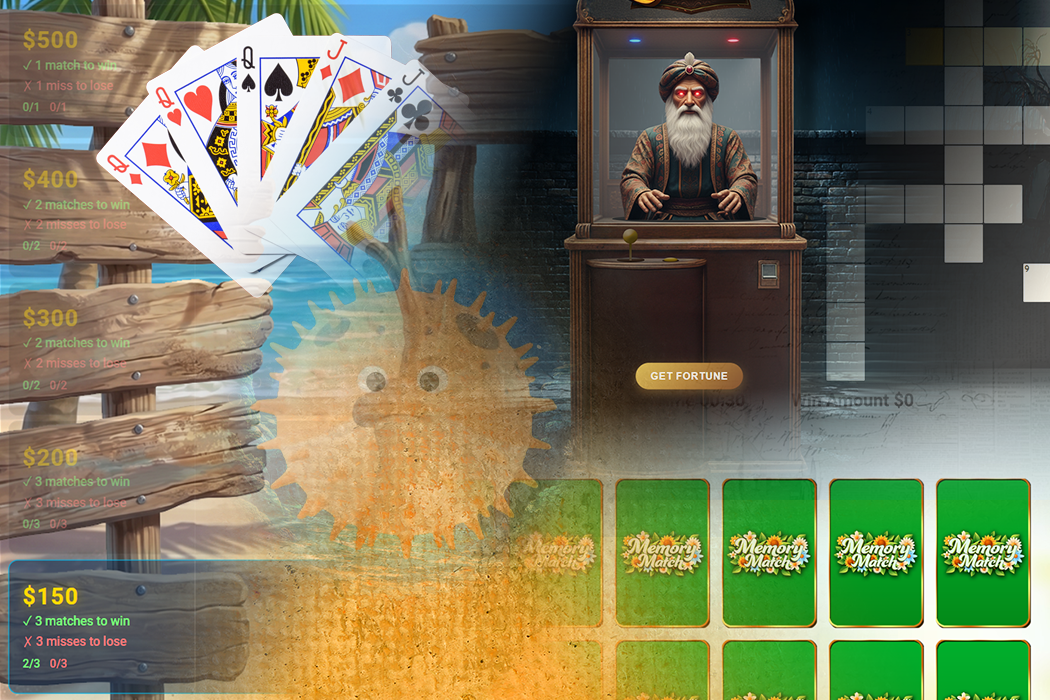
Every promotion fights the same battle: the first day is exciting, the second day is fine, and by the second week your customers have forgotten it exists. Simultaneous Games Campaigns are built to win that battle. Instead of one game for the whole promotion, or one game at a time, you give your customers a fresh line-up of games every day — a featured game that opens the moment they arrive, plus up to four more they can pick from and play once each, every day.
The result is a promotion that feels new every time someone opens it. Monday's line-up isn't Tuesday's. Friday is stacked. A favorite game comes back every other week. And because every game can be played again tomorrow, your campaign stops being a one-time event and starts becoming a daily habit.
The pitch in one line: a featured game that launches itself, a daily menu of up to four more games your customers choose from, prizes for every budget — down to free drawing entries — and a reason for every customer to come back tomorrow.
What Is a Simultaneous Games Campaign?
It's a campaign with more than one game running at the same time. You decide which games run, and on which days, using two different kinds of game:
- Auto-Launch games — your featured games. Each one has its own dates, and they run one after another. When a customer opens your campaign, the current one opens automatically.
- Daily Play games — your daily menu. You place them on a calendar, up to four on any day, and customers choose which ones to play from that day's game cards. Each one can be played once per day.
Every game keeps its own prizes, its own theme and its own odds, so the daily menu can mix a big-prize spinner with a quick scratch card and a just-for-fun puzzle. And like every Promo on Demand campaign, customers play on their own phones, tablets or computers — no app to download and no hardware on your floor.
Auto-Launch vs. Daily Play
The two kinds of game do different jobs, and the best campaigns use both.
Auto-Launch Games The headline
Your featured game for a stretch of dates — this week's spinner, next week's prize reveal. It opens automatically as soon as the customer lands on your campaign, with no button to find and nothing to choose. You set its start and end dates, whether it can be played once or again after a cooldown, and how often. Auto-Launch games can't overlap one another, so there's never any doubt about which one is featured today — and you can leave days between them with no featured game at all.
Daily Play Games The daily menu
The games your customers pick for themselves. Each day's Daily Play games appear as game cards — a picture, a name and a Play button. Put up to four on any day, or fewer, or none at all on a quiet day. Each game can be played once per customer per day, and the day resets at midnight in your property's time zone, so tomorrow it's ready again.
| Feature | Auto-Launch Game | Daily Play Game |
|---|---|---|
| How it starts | Opens automatically when the page loads | The customer taps Play on its game card |
| When it's available | Between its own start and end dates | On the calendar days you place it on |
| How many at once | One at a time, never overlapping | Up to four on any day |
| How often it can be played | Once, or again after a cooldown you set | Once per day, every day it's scheduled |
| Prizes | Variable odds, or one-to-one rewards with a default prize | Variable odds, or one-to-one rewards with a default prize |
| Best for | Your headline offer and personalized rewards | Daily variety and building a habit |
How It Compares to Every Other Campaign Type
Promo on Demand now offers five campaign types, and each one is built for a different kind of promotion. Here's what each one includes — the first six rows are what make a Simultaneous Games Campaign different:
| Feature | Single Game | Multiple in Succession | Simultaneous Games | Pro Football Pick 'Em | Prop Card Challenge |
|---|---|---|---|---|---|
| Several games available on the same day | Not included | Not included | Included | Not included | Not included |
| Customers choose from a daily menu of games | Not included | Not included | Included | Not included | Not included |
| Calendar scheduling with drag and drop | Not included | Not included | Included | Not included | Not included |
| Up to four games on any single day | Not included | Not included | Included | Not included | Not included |
| Days off between featured games | Not included | Not included | Included | Not included | Not included |
| Green checkmark on games played today | Not included | Not included | Included | Not included | Not included |
| Featured game that opens automatically | Included | Included | Included | Includedon bonus games | Includedon bonus games |
| Variable-odds and one-to-one prizes | Included | Included | Included | Includedon bonus games | Includedon bonus games |
| Drawing entries | Included | Included | Included | Included | Included |
| Info Box on the campaign page | Included | Included | Included | Included | Included |
| Multi-language campaign pages | Included | Included | Included | Included | Included |
| Weekly gamified emails | Included | Included | Included | Included | Included |
| Open or invite-only participation | Included | Included | Included | Included | Included |
| Prediction picks and leaderboards | Not included | Not included | Not included | Included | Included |
| Insured grand prize | Not included | Not included | Not included | Included | Included |
In short: if you want one game, or one game after another, Single Game and Multiple in Succession are perfect. If your promotion is built around a football season or a single big event, Pro Football Pick 'Em and Prop Cards are made for it. But if you want customers coming back every day to see what's new, nothing else does what a Simultaneous Games Campaign does. Not sure which fits? The campaign wizard's Help Me Decide button asks you a few quick yes-or-no questions and points you to the right type.
Building One Is Genuinely Easy
A Simultaneous Games Campaign is built in the same four-step Campaign Wizard as every other campaign — there's no separate tool to learn and no code anywhere in the process. The workflow is simple: build your games first, then put them on the calendar.
- Build your custom games. Set up each game the way you always do — pick the game, choose a theme, load your prizes and odds. Every game you configure becomes available to add to a campaign.
- Add them to the campaign. In Step 3 of the wizard, choose whether you're adding an Auto-Launch game or a Daily Play game, then pick it from your list. Auto-Launch games are numbered (1, 2, 3) and get their own dates; Daily Play games are lettered (A, B, C) and get their own color.
- Map them to days. The Daily Play Schedule appears as soon as you add your first Daily Play game: your whole campaign laid out day by day, each day with four open slots, and your games waiting in a palette beside it.
Drag and Drop
Grab a game from the palette and drop it on a day. That's it. While you drag, every slot it can go into lights up green, and every day it can't go on dims with a short reason — "Full" or "Has B" — so you can see where a game fits before you let go. Drag a placed game to another day to move it, or onto the trash to take it off. Prefer the keyboard, or placing one game on lots of days? Click a game to pick it up, then click each day you want it on.
Advanced Scheduling: Dozens of Days in One Step
For a month-long promotion, placing games one day at a time would be tedious, so you don't have to. Open Advanced Scheduling, choose a game and a date range, and pick a pattern:
- Every day — a game that's always on the menu
- Specific weekdays — every Friday and Saturday, for example
- Every few weeks — "every other Tuesday" for a favorite that comes back on a rhythm
- Specific dates — your holiday weekend, your concert night, your anniversary
Before anything changes, you see exactly what will happen — "Adds B to 8 days. Skipped 2: Oct 18 (all 4 slots full), Oct 25 (already has B)." Click Apply, and it's done. The same tool removes a game from a pattern of days just as quickly, and Undo is always one click away.
What a Week Could Look Like
Here's one way to lay out a week. Quiet weekdays get a lighter menu, the weekend gets the full four, and game A appears every day as the anchor:
| Day | Slot 1 | Slot 2 | Slot 3 | Slot 4 |
|---|---|---|---|---|
| Monday | A · Prize Wheel | B · Scratch Card | ||
| Tuesday | A · Prize Wheel | C · Crossword | ||
| Wednesday | A · Prize Wheel | B · Scratch Card | D · Memory Match | |
| Thursday | A · Prize Wheel | C · Crossword | E · Fortune Teller | |
| Friday | A · Prize Wheel | B · Scratch Card | D · Memory Match | E · Fortune Teller |
| Saturday | A · Prize Wheel | C · Crossword | D · Memory Match | E · Fortune Teller |
| Sunday | A · Prize Wheel | B · Scratch Card | C · Crossword |
Once the campaign is live, a Daily Play Schedule tab on the campaign's admin page shows the same month at a glance, with a link straight back into the schedule whenever you want to change it.
Guardrails That Catch Mistakes Before Your Customers Do
A calendar with dozens of days and several games is exactly where small mistakes hide, so the wizard checks your work as you go — and explains every problem in plain language instead of just refusing:
- No overbooked days. A day holds four games at most, and the same game can't be placed twice on one day. A drop that breaks a rule snaps back, with a message saying why.
- No overlapping featured games. Two Auto-Launch games can't run on the same dates, and every Auto-Launch game has to fall inside your campaign's dates.
- No forgotten games. A Daily Play game you added but never placed on a day gets a warning, so nothing you built goes unused by accident.
- No accidental deletions. Removing a Daily Play game tells you how many days it's on before it goes.
- No rewriting history. Once a campaign is live, days that have already happened are locked, so the record of what your customers saw stays accurate.
- Nothing missing at launch. Every game's prize settings have to be complete, and a "Required to continue" bar at the top of every setup step lists exactly what's left.
The guidance starts before you've built anything. Help Me Decide recommends the right campaign type from a few questions, the calendar on Step 3 shows your featured games' dates at a glance, and the final review step summarizes everything — how many Auto-Launch games you have, and how many Daily Play games are scheduled across how many days — before you go live.
The Participant Experience
All of that setup disappears from your customer's point of view. What they see is simple, fast and fun:
- The featured game starts by itself. Open the campaign, and today's Auto-Launch game opens straight away, sized to fit their phone, tablet or computer.
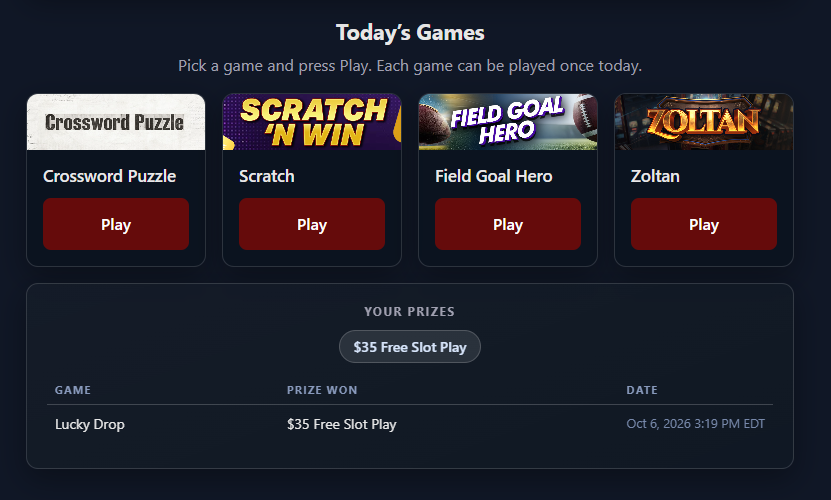
- Today's Games are right there. Below it, a row of game cards shows everything on today's menu. Pick one, press Play, play.
- A green checkmark marks what's done. Once a game has been played today, its card shows a green ✓ and "Played today", so there's never any confusion about what's left. Play them all, and the page says so — and invites them back tomorrow.
- Their prizes, all in one place. Everything they've won appears under Your Prizes, with the game and the date, so they always know where they stand.
The once-a-day rule is enforced by our servers, not just the page. Refreshing, opening a second tab or switching to another device won't get anyone a second play — fair for every customer, and safe for your prize budget.

Prizes for Every Budget
Every game in the campaign — Auto-Launch and Daily Play alike — has its own prizes, so you can match each game to the job you want it to do.
Variable Prizes You set the odds
Load a set of prizes and decide how likely each one is — a small chance at a big prize, a good chance at a small one. You stay in control of how often each prize is given out, which makes it easy to plan a budget for a busy daily game.
One-to-One Rewards The exact reward, for the exact person
Upload a list matching specific customers to specific rewards — $50 in free slot play for your top tier, a dinner for your anniversary members, a hotel offer for guests who haven't visited in a while. Each person gets exactly what you chose for them, and a default prize covers everyone who isn't on your list. A one-to-one reward is given out once, so it works best on an Auto-Launch game; on a Daily Play game, later plays fall back to the default prize.
Drawing Entries Costs nothing to give
The perfect fallback prize: every customer who plays earns entries toward a drawing you hold whenever you like. Entries cost nothing to give out, so you can be generous with them every single day. Run the drawing with our built-in Random Player Drawing Tool — even live on the TVs on your floor — or use the drawing system you already have on property.
Do the math on a monthly drawing. Put a $1,000 prize behind one drawing at the end of the month, and give drawing entries on every Daily Play game. That's about $33 a day for a reason for every customer to open your campaign every day of the month — and the more days they play, the better their chances.
Use the Featured Game to Bring Them In
Here's a combination worth stealing: put your one-to-one rewards on the Auto-Launch game, and make them rewards that can only be redeemed on property — free slot play, a meal, a gift at the players club. Customers find out exactly what's waiting for them the moment they open the campaign, and the only way to collect it is to come in. Meanwhile, the Daily Play games keep them coming back to the campaign every day with drawing entries and instant-win prizes.
The Info Box: Your Built-In Billboard
Every campaign page can carry an Info Box — a block of your own content, written in the wizard with a simple editor, that sits right on the page your customers come back to every day. Think of it as a billboard that gets daily views:
- Your drawing details — when it is, what's up for grabs, and how entries work
- This week's on-property promotions, concerts, dining specials and tournaments
- Hotel offers, new-member perks or your players club hours
- Rules, terms and anything else your customers should know
Because customers visit every day to play, anything you put in the Info Box gets seen again and again — without a single extra email.
Speak Every Customer's Language
Campaigns are now multi-lingual. In the wizard, choose which languages you want to offer — there are more than 100 to pick from — and a language selector with flags appears on your campaign page. Customers pick their language, and all the text on the campaign page is translated instantly: the instructions, the buttons, the game cards, your Info Box. Their own personal details, like names and loyalty numbers, are never sent for translation.
That opens your daily promotion to every customer who's more comfortable in another language — and turning it on takes a couple of clicks. Multi-language support inside the games themselves is coming soon.

Ideas to Make It Your Own
The calendar is a blank canvas. A few ideas to get you started:
- Lift your slow days. Look at your quietest days of the week and give them the best menu — four games on a Tuesday is a reason to show up on a Tuesday.
- Theme your days. A "Fortune Friday" game every Friday, a puzzle every Sunday morning. Customers learn the rhythm and start planning around it.
- Make favorites scarce. Schedule your most popular game every other week instead of every day. When it comes back, it feels like an event.
- Build to a finale. Start the month with one or two games a day and add more each week, so the excitement grows toward your end-of-month drawing.
- Tie it to your calendar. Put a special game on the day of your concert, your holiday party or your property's anniversary — and advertise it in the Info Box all week.
- Remind them. Weekly gamified emails bring lapsed players back with an instant reward and a reminder that today's games are waiting.
Not Just for Customers: Team-Member Campaigns
Everything that makes a daily campaign work for your customers works for your team, too. Run a campaign just for your team members: a daily game to play on a break, drawing entries for participating, and a monthly drawing for something everyone wants — a reserved parking spot, an extra day off, a dinner for two. With multi-language campaign pages, every member of a diverse team can take part in the language they're most comfortable with.
And there's more on the way. Educational games are coming soon — games you'll be able to add to a campaign to teach and reinforce what your team needs to know, from service standards to safety and new procedures, and reward them for learning it. Stay tuned. In the meantime, see Employee Recognition Campaigns for more ways to reward your team.
Get Started
Simultaneous Games Campaigns are available now in the Campaign Wizard. Build a few games, place them on the calendar, set your prizes — down to free drawing entries if you like — and give your customers something new to play every day.
Want help planning your first calendar or picking the right prizes? — we'd love to help you build a promotion your customers look forward to every day.